 love unITed Solutions
Last checked against Salesforce’s documentation on November 2, 2026. Salesforce has adjusted this rollout several times, so confirm your org’s status in the Salesforce articles linked at the bottom.
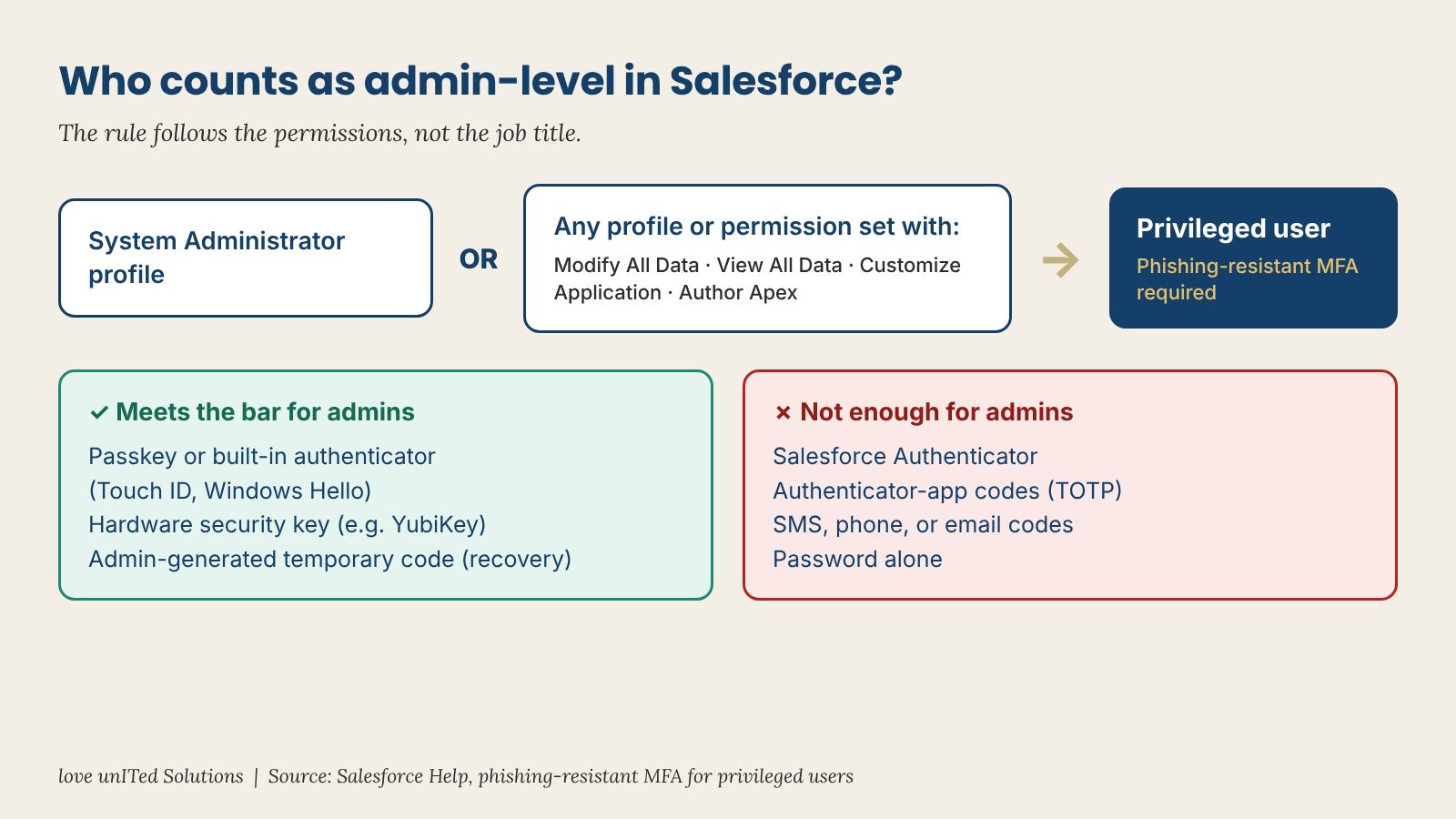
The unITed TL;DR: Salesforce now requires multi-factor authentication (MFA) for all employee users, and phishing-resistant MFA for anyone with admin-level access. That means a passkey, a built-in authenticator like Touch ID or Windows Hello, or a hardware security key. An admin without one of those registered is blocked at login until they set it up.
Let’s talk about the thing nobody wants to discover on a busy Monday morning: your Salesforce admin can’t log in. Nobody can fix a broken report, onboard a new hire, or change a field. Take a breath, because this is very fixable. We’ve walked small teams through exactly this, so here we’ll cover what changed, how to check your own org in two steps, and why we steer most small teams toward SSO.
What Changed, in Plain English
Salesforce now expects two levels of protection:
- Everyone with an employee license needs MFA to log in, whether they sign in directly or through SSO.
- Admin-level users need phishing-resistant MFA. Salesforce Authenticator and one-time code apps no longer meet the bar for these users.
Why the extra step for admins? A code or an “approve” button can be tricked, because a convincing fake login page can collect it. A passkey or security key is tied to the real Salesforce domain, so a lookalike site can’t use it. Salesforce’s own admin guidance draws the same line.
Salesforce treats a user as admin-level if they have the System Administrator profile, or any of Modify All Data, View All Data, Customize Application, or Author Apex, including through a permission set. A privileged user without a compliant method registered is blocked at login until they set one up.
Salesforce published the admin rollout in waves starting July 20, with the final group scheduled for September 3, 2026, and it moved dates along the way. Some orgs also run on a temporary extension, which changes who has to use what. Check Salesforce’s live help article for your org’s status instead of relying on a date from any blog post, including this one.
Step 1: Find Out Who Really Has Admin-Level Access
This is where we always start, and there’s no shame in not knowing the answer yet. Most teams don’t. The list of people who should be admins is rarely the list of people who are. When you audit, look for:
- Everyone on the System Administrator profile
- Anyone holding a permission set that includes the four permissions above (these are the “hidden admins”)
- Shared or integration accounts that people log into by hand. A shared login is hard to protect with a personal passkey, and it is hard to audit.
- Contractors and consultants with admin-level access (yes, that includes consultants like us)
Once you have the list, apply least privilege. Some of those people only need to run reports or build list views, not hold the keys to everything.
Step 2: Check the Settings, the Methods, and the Login Path
With the list in hand, we move through three checks, in this order:
1. Org settings and permissions. Confirm how MFA is configured org-wide and who holds the MFA permissions. The old “Waive Multi-Factor Authentication for Exempt Users” permission no longer exempts anyone automatically, and valid exemptions now go through Salesforce Support. Also check whether your org has a temporary extension.
2. Registered methods. Look at what each admin has actually registered. Salesforce’s guidance is two phishing-resistant methods per privileged user, plus a written “break glass” plan, such as an admin-generated temporary verification code, so one lost laptop doesn’t become a lockout.
3. The login path. Do people sign in directly, or through SSO? If it’s SSO, your identity provider needs to send the right authentication signals (called AMR or ACR values) to Salesforce. If it doesn’t, users get prompted to set up an extra method inside Salesforce.
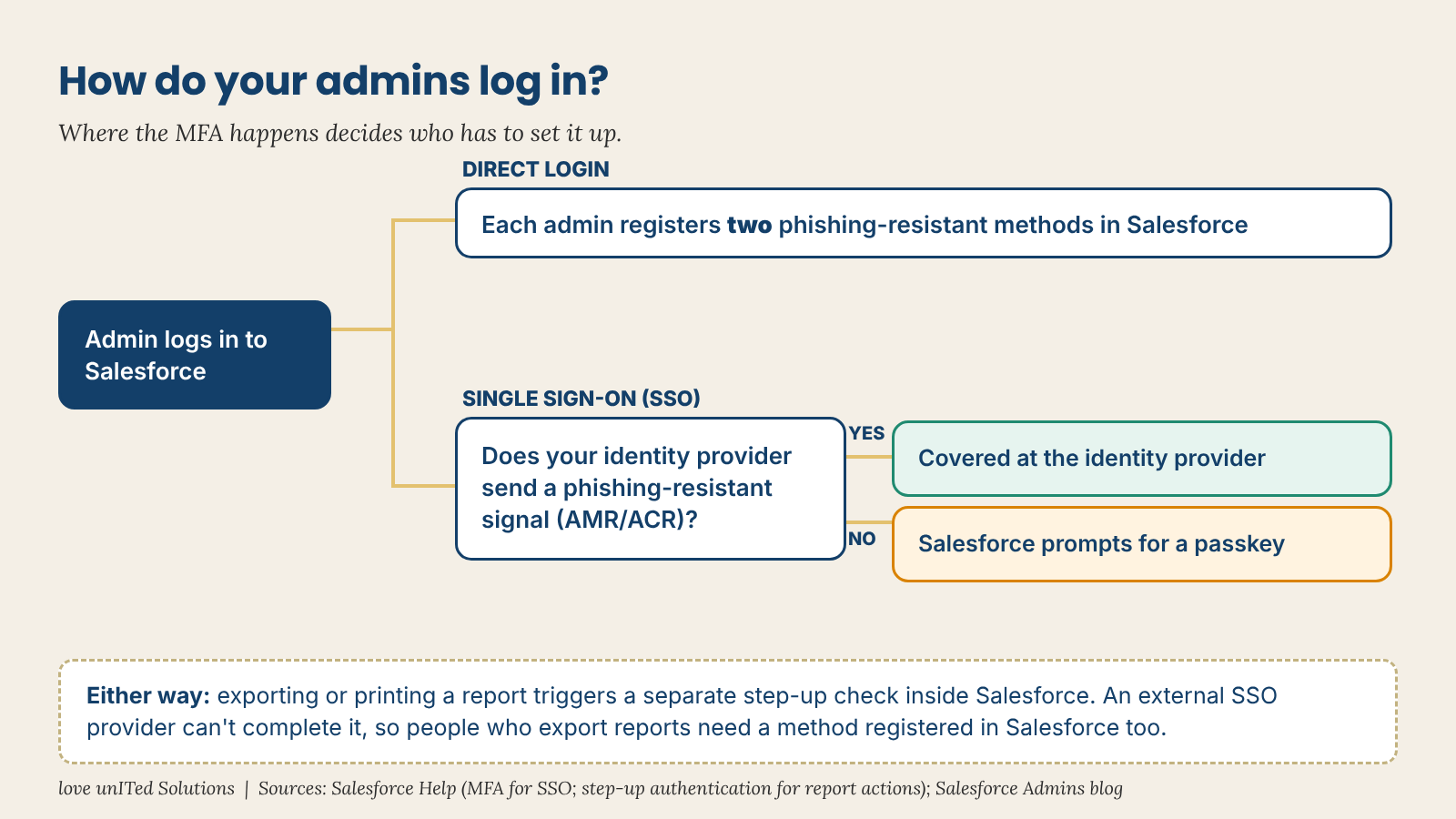
🔧 Heads up on report exports: Salesforce also added a step-up check when users export or print reports. It applies to everyone, including admins and SSO users, and an external SSO provider can’t complete it. People who export reports still need a verification method registered in Salesforce.
Why We Point Small Teams Toward SSO
This is easier and cheaper to fix now than after a lockout, when you lose uptime. For most small teams, the best route is an SSO tool that pushes most of the compliance work to a platform and a company that eats, sleeps, and breathes compliance. Enrollment, device changes, and offboarding happen in one place instead of in every user’s account, and your admin team isn’t carrying it alone.
SSO isn’t completely hands-off. You still need to confirm your identity provider sends the right signals, and you should keep a documented way back into Salesforce if SSO has a problem. But the day-to-day burden moves off your admin team, and that is the point.
What a Lockout Looks Like
We worked with a small team whose internal admins lost access to their org. They had no company-wide password manager, so there was no shared, secure place to keep recovery methods. We walked each admin through setting up their MFA on their own browsers and personal devices to get them back in.
The takeaway is simple: when your admin is locked out, the whole org is stopped. Registering two methods per admin and writing down who can restore access takes an afternoon, and it is far easier to do before something breaks.
A Quick Readiness Checklist
- List everyone with admin-level access, by profile and by permission set
- Remove or reduce access people don’t need
- Separate shared and integration logins from human logins
- Confirm each admin has two phishing-resistant methods registered
- Write down who can restore access in a lockout
- Decide whether SSO should carry your logins, and confirm the signals it sends
- Check who exports reports and make sure they can pass the step-up check
Quick Answers
Does the MFA requirement apply if we log in through SSO?
Yes. Salesforce requires MFA for SSO logins too. Your identity provider’s MFA can satisfy it, but the provider has to send authentication signals (AMR or ACR values) that tell Salesforce the MFA happened. For admin-level users, the signal has to show a phishing-resistant method. Without it, users are prompted to set up a method inside Salesforce.
Can admins still use Salesforce Authenticator or an authenticator app?
Not for admin-level users. Both count as standard MFA, which is fine for everyone else but doesn’t meet the phishing-resistant requirement for privileged users.
What happens if an admin hasn’t registered a compliant method?
They are blocked at login until they register one. A temporary verification code generated by an admin can get them back in, which is one more reason to have more than one admin and a written recovery plan.
Do contractors and consultants need it?
If they hold admin-level access, yes. The rule follows the permissions, not the job title.
Can we get an exemption?
The old “Waive Multi-Factor Authentication for Exempt Users” permission no longer exempts anyone automatically. Valid exceptions go through Salesforce Support.
Not Sure Where Your Org Stands?
MFA is one piece of your org’s login and access picture, and most teams simply don’t have the time to map all of it. That’s where we come in, and we’re happy to go at whatever pace feels comfortable.
If you’re not sure who really has admin-level access in your org, start with a free 30-minute consultation. We’ll give you a clear read on where you stand, with no pitch.
For a complete assessment, our Security & Access Review is a fixed-price, one-week engagement priced at $2,000. It evaluates profiles, permission sets, sharing rules, field-level security, MFA readiness, and login posture against how your team operates. Deliverables are a security scorecard, a prioritized remediation checklist, and a live readout call.
Ready to move? Book a free consultation today, or request a Security & Access Review.
Sources and Further Reading
- Salesforce Help: Prepare for Phishing-Resistant MFA Enforcement for Privileged Users including Admins
- Salesforce Help: Prepare for MFA Enforcement for All Employee Users
- Salesforce Help: Prepare for the Upcoming Salesforce Step-up Authentication Requirements on Report Actions
- Salesforce Help: MFA and Phishing-Resistant MFA Post-Enforcement Passkey Prompts and Extension Behavior
- Salesforce Help: Use Salesforce MFA for SSO
- Salesforce Admins Blog: Prepare Your Org for Salesforce MFA Enforcement
- Trailblazer Community: Multi-Factor Authentication group